If you own a website, you probably already know that speed matters. You may not know that Google now measures speed in a very specific way, and that these measurements can affect how your pages are shown in search results. The name of this system is Core Web Vitals.
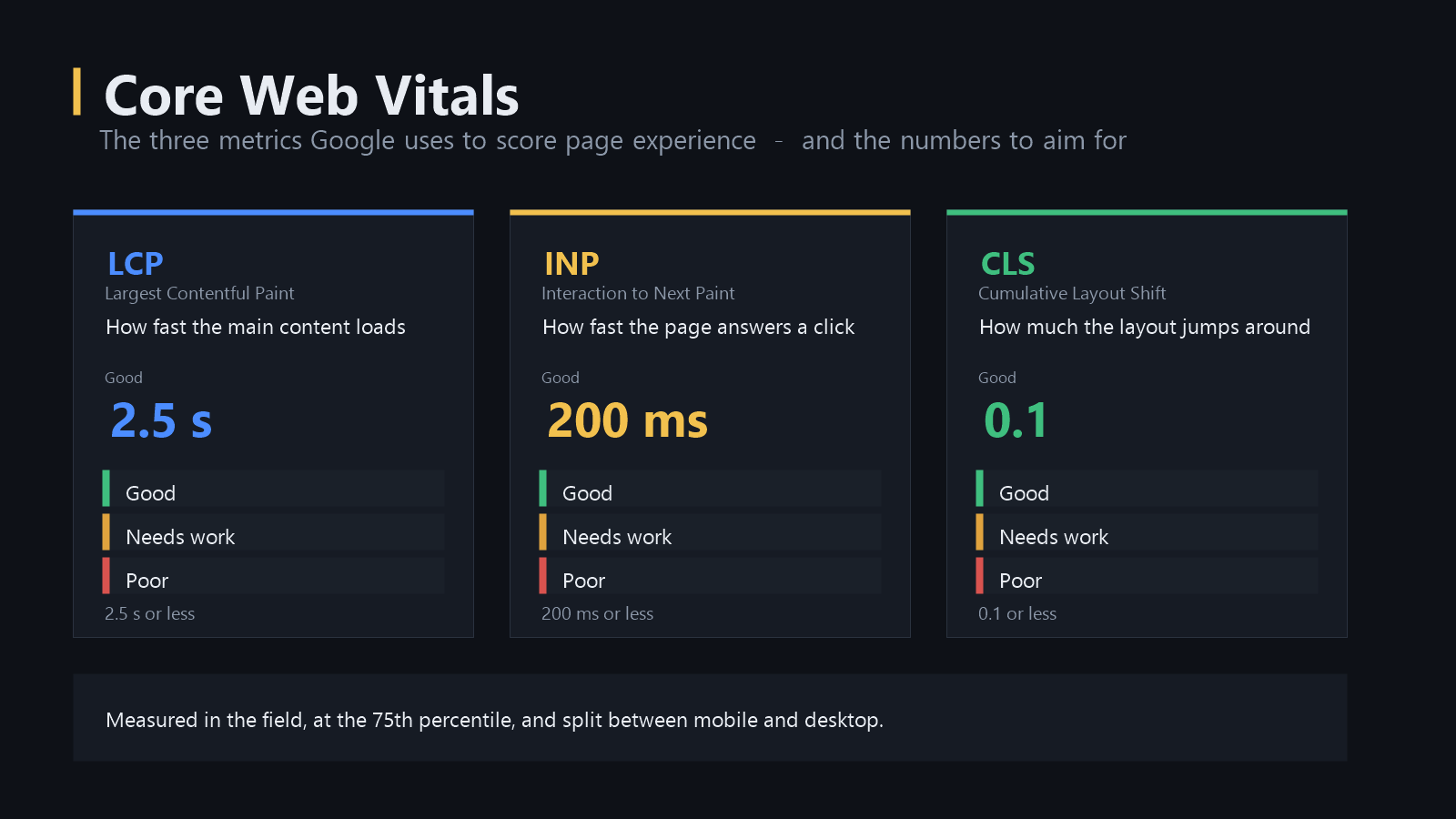
There are three numbers in it. All three are simple. But most website owners do not really understand what the numbers mean, and this is where a lot of problems start. So in this guide we will go through all three, explain what they measure in normal words, and show you what you can do about them.
This is written for people who run a site, not for people who build browsers. If you can install a WordPress plugin and press a button, this guide is for you.
What Core Web Vitals Actually Are
Core Web Vitals is a set of measurements from Google. The idea behind it is simple. Google wanted one clear way to say "this page feels fast and works well for a visitor". Instead of asking site owners to follow a long list of technical rules, Google picked three numbers and made them the same for every website on the internet.
These three numbers show up in Google Search Console, in the PageSpeed Insights tool, and in the ranking system as part of the page experience signal. They are not the only thing that decides your ranking. But they are one of the signals, and a site that fails them has a real problem with real visitors.
There is also a good reason to care even if you do not care about Google at all. A slow website does not just rank worse. It loses customers. People close the tab. They leave. They do not come back. The numbers below are a measurement of that.
The Three Metrics
Largest Contentful Paint (LCP) - loading speed
LCP measures how long it takes for the biggest visible piece of content to appear on the screen. Usually this is the main image, the headline block, or a large video thumbnail.
The good threshold is 2.5 seconds or less. If your page takes longer than that to show its main content, visitors are looking at a blank or half-finished page.
Interaction to Next Paint (INP) - responsiveness
INP measures how fast the page reacts when a visitor clicks, taps, or presses a key. The important thing here is the visual feedback. If a visitor taps a menu button and the menu opens straight away, the page feels good. If they tap and nothing happens for a long time, they will probably tap again, and then the menu opens twice.
The good threshold is 200 milliseconds or less.
INP is the newest metric in this group. It replaced First Input Delay (FID) as a Core Web Vital on March 12, 2024. FID only looked at the first interaction on the page. INP looks at all interactions during the whole visit, and it takes the slowest one. This is why INP is harder to pass, and why many sites that were happy suddenly saw a new warning in Search Console.
Cumulative Layout Shift (CLS) - visual stability
CLS measures how much the page moves around while it loads. If a visitor starts reading a paragraph and an image suddenly pushes the text down, that movement is counted.
The good threshold is 0.1 or less. Anything below 0.1 is good, between 0.1 and 0.25 needs work, and above 0.25 is poor.
This one is often the easiest to fix, because the usual cause is very simple. Something is loading without a reserved space.
How Google Measures Your Site
There are two details here that many people get wrong, so it is worth reading carefully.
First, the measurement is field data. Google collects these numbers from real visitors on your actual site, in the Chrome browser. It is not a test. It is not a simulation on a fast office computer. It is what your customers really experienced.
Second, the score is the 75th percentile. This means Google sorts all your visits from fastest to slowest and looks at the number that 75 out of 100 visitors had a better result than. In simple words: your score passes if at least 75% of your visitors had a good experience.
Google also splits the numbers by device. Mobile and desktop are scored separately, and mobile is usually the harder one. If you only look at your desktop report, you will not know what your phone visitors are seeing.
One more thing. The 75th percentile means a very small number of slow visits will not hurt you. You do not need every visit to be fast. You need most of them to be fine.
The Mistake That Most Site Owners Make
Many owners open PageSpeed Insights, run a test, and look at the score. Then they get worried because the score is 62 and it is red. Or they get happy because the score is 98 and they stop working on it.
Both reactions come from the same misunderstanding. The score in PageSpeed Insights is a lab test. It runs on a simulated connection, on a simulated device, on a first visit with an empty cache. It is very useful, because it tells you what to fix. But it is not the number Google uses for ranking.
For ranking, Google uses the field data in the Core Web Vitals report in Search Console. If you do not have enough real traffic for that report to exist, then the lab tools are what you have, and you should still use them. Just know which one you are looking at.
How to Improve LCP
LCP is usually a picture. According to the 2024 Web Almanac report, 73% of pages on mobile have an image as their largest contentful element. So if you want a fast LCP, you mostly need to fix your images.
Start with these:
- Find the LCP image. In Chrome DevTools, or in PageSpeed Insights, the LCP element is marked. Do not guess which image it is. Check.
- Do not lazy-load it. Lazy loading is good for images far down the page. It is very bad for the image the visitor is waiting for. If the LCP image is lazy loaded, the browser will not even start to fetch it until the layout is ready.
- Preload it. Put a preload link for the LCP image in the HTML head, so the browser starts downloading it before it finds the image tag.
- Use the right format and size. WebP or AVIF instead of JPEG, and serve an image that is not much bigger than the space it will be shown in. A 3000 pixel image on a 700 pixel box is wasted bytes.
- Do not hide it behind a redirect. Sometimes a click takes the visitor through a few redirects before the real page loads. Every redirect is time you do not have.
Also, the LCP image should be on the server where it can be found quickly. If your server is in another country than most of your visitors, the image needs to travel a long way. A content delivery network helps a lot here.
How to Improve INP
INP is about JavaScript, and about the main thread being busy. The browser can only do one thing at a time on the main thread. When it is busy with a long task, it cannot paint a response to a click. The visitor sees nothing and assumes the site is broken.
A task longer than 50 milliseconds is called a long task. Anything over that can freeze the page.
The most effective things you can do:
- Break up long work. If you have a big loop that runs for 500 milliseconds, let the browser breathe every few steps. The new Scheduler API has a
scheduler.yield()function for exactly this. - Send less JavaScript. The web keeps getting heavier. Use the coverage tool in Chrome DevTools to find code that never runs, and remove it. Split your code so the browser only downloads what it needs for the first screen.
- Clean up your tag manager. Marketing tags are often the biggest cause of slow pages. A tag that was added two years ago for a campaign that ended is still costing every visitor on every page.
- Use platform features instead of custom code. Modern CSS can do a lot of what people still use JavaScript for. It is faster and it does not block the main thread.
- Give quick feedback. If an action really does take time, show something immediately. A spinner, a disabled button, a loading line. The visitor is less annoyed when they see that something is happening.
How to Improve CLS
This one is mostly about giving space to things before they arrive.
- Set a width and height on every image and video. The browser then knows the space in advance and does not move the text.
- Reserve space for ads and embeds. Ad scripts are a very common cause of bad CLS.
- Avoid inserting content above existing content after the page has loaded. A banner that pushes everything down is the classic mistake.
- Use font-display settings so that text does not jump when the font arrives.
CLS is usually the fastest win of the three. Many sites can go from poor to good in an afternoon, just by adding image dimensions.
A Simple Checklist for This Week
If you do not want to build a big project around this, here is the short version.
- Open Search Console and find the Core Web Vitals report. If it is there, read it. The report tells you which of the three is failing, and which pages are the worst.
- If there is no report yet, run PageSpeed Insights on your five most important pages.
- Check the mobile version first. It is usually worse.
- Add width and height to all images. Cheap, and it can fix CLS on many pages at once.
- Find the LCP image on your homepage. Preload it, and stop lazy loading it.
- Run the DevTools coverage tool on your homepage. Look for large scripts you do not need.
- Review the tags in your tag manager. Remove what is not in use.
- Re-test. Do not guess whether it worked. Measure again.
Final Words
Core Web Vitals look like a technical scoring system, and in some ways they are. But what they really measure is simple: did the visitor get what they came for, quickly, without the page jumping around?
You do not need a perfect score. You need the most important pages of your site to pass, for most of your real visitors, on the devices they actually use. That is a realistic goal, and it is reachable.
Start with the three numbers, fix the worst one first, and measure again in a month. Small, steady work beats a big rewrite that never happens.
Sources
- Google web.dev, "Web Vitals" - the official description of Core Web Vitals and the thresholds
- Google web.dev, "The most effective ways to improve Core Web Vitals"
- Google web.dev, "Interaction to Next Paint" - the guide for INP
- Google web.dev, "Interaction to Next Paint becomes a Core Web Vital on March 12" - the FID to INP change
- HTTP Archive, 2024 Web Almanac, Performance chapter - data on LCP elements